
 Session timeout
Help
Reviewer/Committee Member Resources
For detailed guidance, please see the relevant reviewer guide for your area. These can be found on the Research and Innovation Portfolio website. This page covers the following points:
- Navigating the Adelaide Compliance and Ethics System (ACES)
- Completing a review
- Where to go for help
Your ACES Work Area
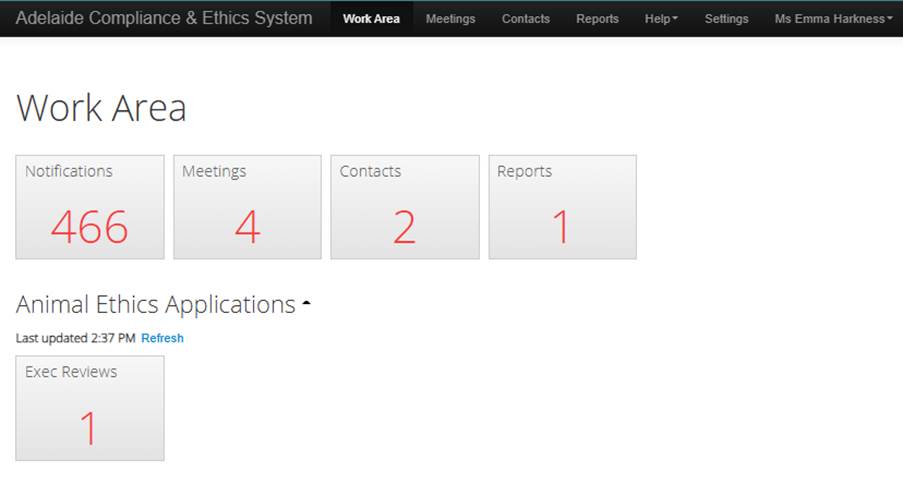
Navigation Bar (along the top)
- Work Area - your ACES homepage.
- Meetings - contains a list of meetings you have been invited to and allows you to access assigned applications by meeting date
- Contacts - individual to your account and displays personal contacts that can be pulled into application forms. You will not need this as a reviewer.
- Help - includes contact information, and technical support, FAQs, templates, and information about the platform.
Work Area
This area is unique to you and its contents depend on your role (e.g., committee member, executive reviewer, etc). It is comprised of a number of tiles.
- Notifications - displays items requiring your attention
- Meetings - contains a list of meetings you have been invited to and allows you to access assigned applications by meeting date
- Contacts - individual to you and displays personal contacts that can be pulled into application forms
Emails and Notifications
System Emails are sent from donotreply@Infonetica.net
The emails you receive are dependent on the role you are assigned to as a project progresses. These roles will be manually assigned to you by the Ethics or Compliance Officer.
You cannot unsubscribe from system emails, however, if you believe you are receiving emails in error, contact the Ethics or Compliance Officer for assistance.
System Notifications are sent at the same time as system emails and serve as a quick reference point in your Work Area. You can open the relevant projects by clicking on the notification. You can delete notifications, mark them as read/unread and flag them as important.
Accessing an Application for Review
The Work Area contains tiles that are relevant to your role and each tile will only contain applications assigned to you that require action. Each tile will only display applications that are assigned to or require action from you. Depending on the committee you belong to, there may be one tile group for all applications or several for different types (e.g., different types of form or pre-approval/post-approval applications).
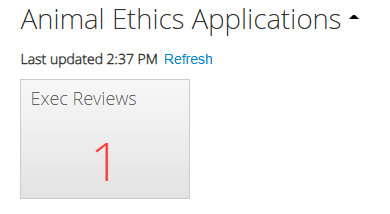
In this example, you have been assigned the role of an executive reviewer and there is currently one application sitting with you for review.
Upon clicking on the tile, additional details about the application list will be viewable. These details vary between committees. This example is based on the animal ethics situation outlined above.

The details that can be viewed vary from domain to domain. They might include the following:
- Project ID - unique system reference number for the application. This number is assigned by the system.
- Assigned Reviewer Last Name - contains a list of all assigned reviewers of the application by last name.
- Project Title - title of the project as nominated by the researcher/applicant.
- Review Submission Date - the date the review was submitted.
- Review Reference - application reference number which will be referred to throughout the life of the project.
- Application type - type of application submitted (e.g., general application, amendment, progress report).
- Applicant first and last name - Name of the researcher/applicant who completed the application form (not necessarily the chief investigator/project supervisor).
By clicking on the relevant application, you will be directed to the form.
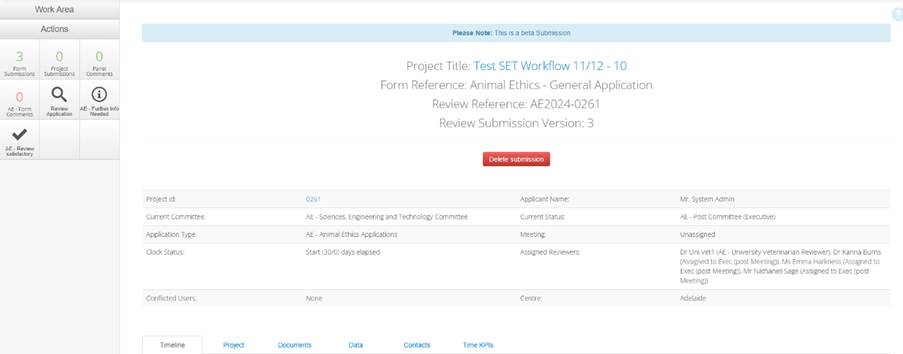
In the form, you will find:
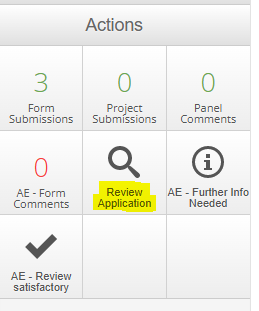
- Navigation panel/actions box - contains the buttons specific to your role and what's permitted at the current stage of the review.
- Additional details of the project - such as the current status, assigned reviewer list, any conflicted users, applicant name.
- Project timeline - capturing all the steps the application has gone through since submission of the most recent version.
Form Comments
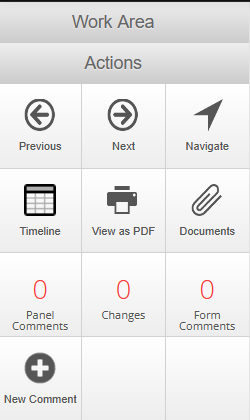
Located in the Navigation panel/actions box is 'Form Comments'. This button displays comments that apply to the whole form, rather than specific questions. Some areas use this to record committee decisions, while others (e.g., biosafety and compliance) use it to communicate between Ethics/Compliance Officers and reviewers. Any correspondence in this section is not viewable to the applicants.
Please consult with the Ethics/Compliance Officers for your committee regarding whether you should check form comments before beginning a review.
Reviewing the application
Located in the Navigation panel/actions box is 'Review Application'. This tile/button is consistent across all applications and once clicked, you will be redirected to an overview page of the application which will contain heading of the page contents.
The below examples are from an Animal Ethics application, but may look different depending on a number of factors.
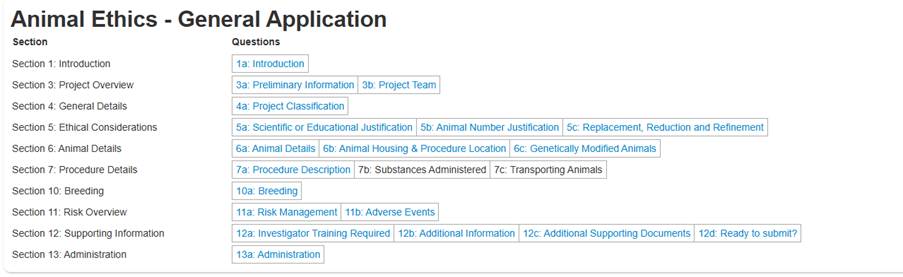
Please note: The application is locked at this stage so no one is able to make changes (including the applicant).
Click on the title of a question sections to see the content of the form. When you do this, different actions will become available.
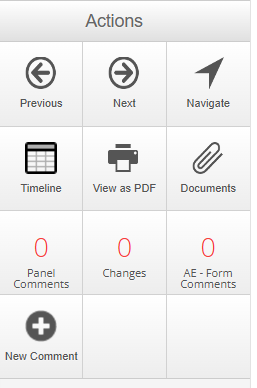
The actions available when in the review interface vary between areas but typically include:
- Previous/Next - Ability to click through the pages of the application.
- Navigate - Takes you back to the overview page of the application.
- Timeline - Jumps you back to the Project Timeline (right back to the stage where we had to click Review Application). This displays all the steps this version of the application has gone through from submission.
- View as PDF - Produces a printable version of the application form. This can be tailored by including different type of comments and table summaries.
- Documents - All documents that were uploaded to the application form are stored here. These documents will also be viewable within the application form at the sections where they are uploaded.
- Panel Comments - Panel- or question-specific comments that have been added on the review side (e.g., by a reviewer or Ethics/Compliance Officer). These can be set to be viewable by the applicant/researchers (e.g., Ethics/Compliance Officer comments requesting a change, comments added during a committee meeting and other reviewer comments). These comments are attached to specific questions or panels in the form.
- Changes - Changes the applicant has made in the form since the original or previous submission.
- Form Comments - Comments that apply to the form overall. These are usually high-level and a way for the Ethics/Compliance Officer and reviewers to communicate throughout the lifecycle of an application. They cannot be viewed by the applicant.
- New Comment - This action allows you to add a panel comment (comments that are about a specific question and added against the question).
Panel Comments
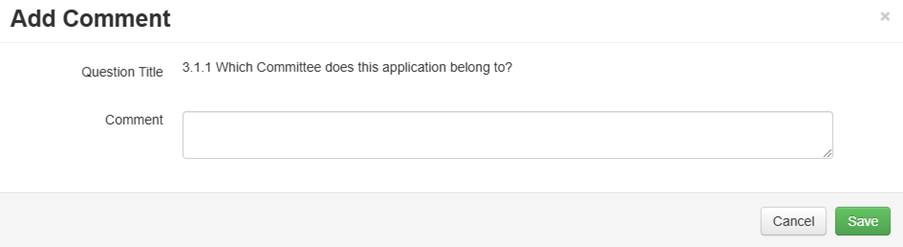
Panel comments are used to comment against specific questions or sections to make comments intended for applicants (e.g., when clarification is required and an incorrect response has been given). To add a panel comment, click on New Comment (located in the Actions box) and click on the question that you would like to comment on.

A pop-up box will appear where you can record what is required, and click 'Save'. Once saved, the date, time and your name will be recorded against the comment (on the review side only). The applicant will not see any of these details, all comments are anonymous to the applicant/researcher.
Each comment that has been added in the form will appear when you click the 'Panel Comments' action button. If you instead click the speech bubble icon to the right of any section of the form, you will only see panel comments on that specific section.
When you have finished reviewing the application, click on the 'Timeline' action to take you back to the Project Overview. There will be different actions available which will allow you to move the application on.
Please see the detailed guide specific to your committee as there are specific actions and processes for each area.
For Animal Ethics Applications:
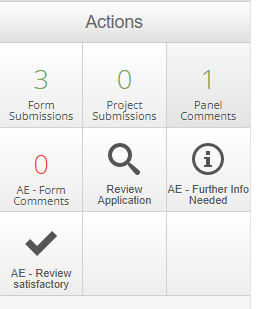
In addition to reviewing and leaving comments where necessary, please use one of the following actions when you have finished review:
- AEC Further Info Needed - use this action if there is more information required from the applicant to be able to proceed the application. If this is selected, there must be comments added to the application form explaining what information is needed. Please use form comments to indicate if you would like to see the response from the application or if you are happy for the Ethics Officer to move the application along once the information has been provided.
- AEC Review Satisfactory - the application is satisfactory and is suitable to proceed through the process.
For Human Research Ethics Applications:
Applications will be assigned to you for review at the same time that they are assigned to a meeting. Please review and add comments to the application. You will not be required to do anything further for initial review as all feedback will be discussed in the committee meeting. The application will be moved on by the Human Ethics Officer.
When assigned to review an out-of-session resubmitted application, you may need to suggest an outcome from the action buttons in addition to reviewing and adding comments.
For IBC GMO and IBC NON-GMO Applications:
When you have finished the review and returned to the project overview, please click either 'IBC-AU GMO Submit Review' or 'IBC-AU NGM Submit Review'.
Once this action is selected, a pop-up will appear with the relevant assessment form. Please fill out the required sections of the form.
Once all the sections have been completed, select the ‘Submit Review’ button located at the bottom–right of the pop-up.
This action will send the application back to the Compliance Officer for actioning.
Where to go for help?
For support using ACES to review and approve applications, please contact the relevant Committee.
Animal Ethics | Human Research Ethics | Biological Compliance |
ACES System Support
- Access Services Hub to request technical support with ACES.
- From there, select either ‘Report an IT issue’ or ‘Request an IT service’ as relevant.